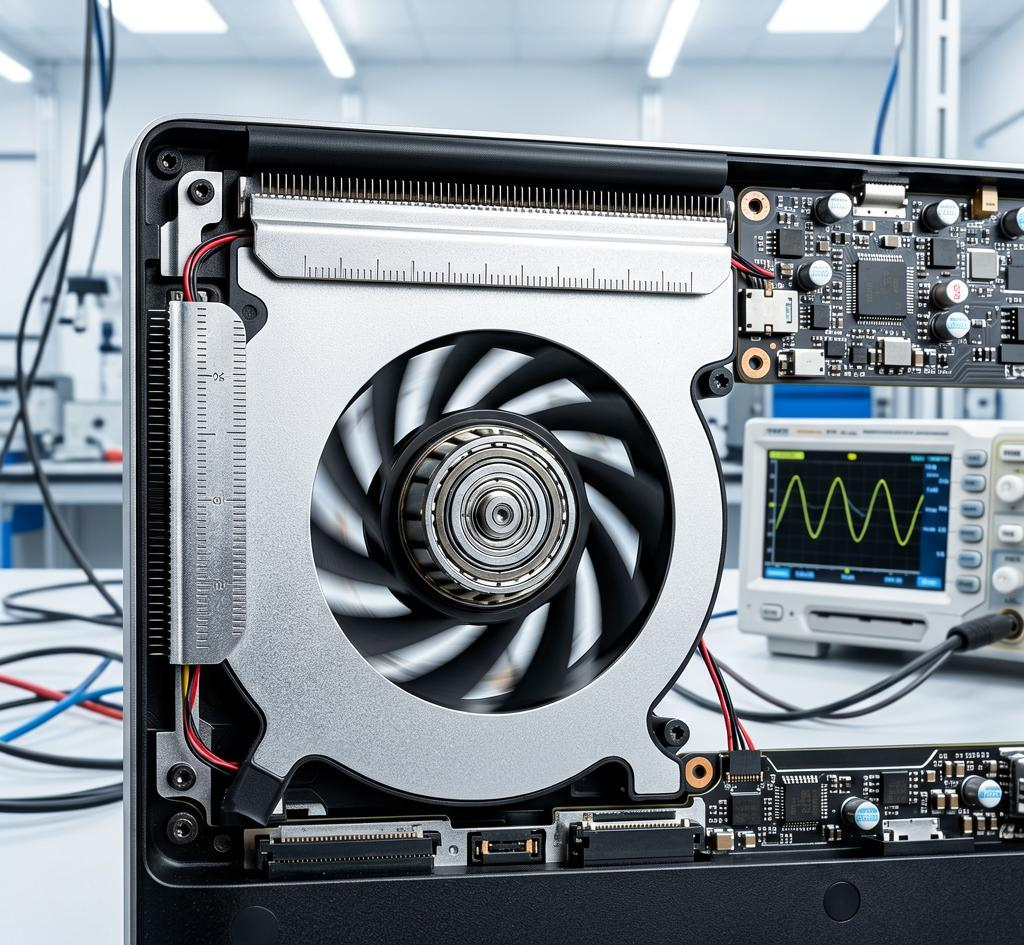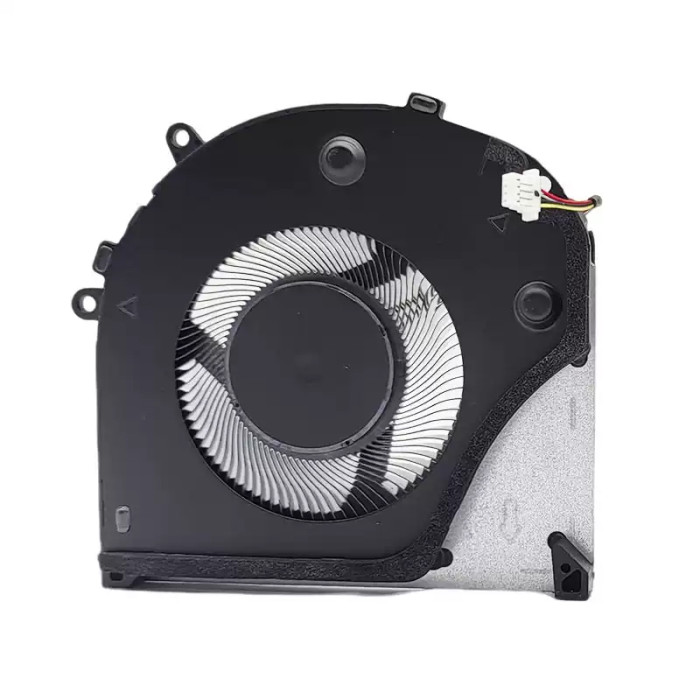

MSI Stealth 16 AI+ plus 2026 MS-2631 CPU Fan original

SKU: LT-10028367 In Stock
US $18.00
Model MS-2631
Condition NEW
Location shenzhen,China

Related Products

Replacement Fan – Interface & Connector Guide

MSI Stealth 16 AI+ plus 2026 MS-2631 CPU Fan original (Model: MS-2631) is a replacement cooling fan designed for laptop thermal management. The interface (connector type) determines how the fan communicates with the motherboard and controls its speed. Laptop fans typically use 2-pin, 3-pin, or 4-pin PWM connectors.

Technical Specifications:

  • Part Number: MS-2631
  • SKU: LT-10028367
  • Product Status: Brand New
  • Warranty: 90‑day replacement

Compatible Systems (reference):

MS-2631

Interface Types – What They Do:

  • 2‑pin – provides power (positive and negative) only. The fan runs at a fixed speed; no speed feedback or control.
  • 3‑pin – adds a tachometer (speed sensor) wire. The motherboard can read the fan's RPM but cannot adjust the speed automatically (only via voltage control).
  • 4‑pin PWM – includes a PWM control wire. The motherboard can modulate the fan speed dynamically based on temperature, providing precise, silent cooling.

How to Identify Your Fan's Interface:

  • Count the wires – 2 wires = 2‑pin; 3 wires = 3‑pin; 4 wires = 4‑pin (PWM).
  • Check the connector shape – 2‑pin and 3‑pin connectors are usually similar; 4‑pin has an extra slot for the PWM signal.
  • Look at the motherboard header – the matching header on the motherboard will have 2, 3, or 4 pins.
  • Use software – tools like SpeedFan or HWMonitor may indicate if PWM control is supported.

Still unsure about your interface? Send us a clear photo of the connector and the wires, and we'll identify the correct type for you.

Compatible

Compatible part number

MS-2631

⚠️ Interface Compatibility Check – Critical!
2-pin, 3-pin, and 4-pin PWM fans are not interchangeable without an adapter.
A 4‑pin fan will work on a 3‑pin header (at reduced functionality, no PWM), but a 3‑pin fan on a 4‑pin header will not support PWM and may run at full speed constantly.
Always verify the exact pin count and wire configuration on your original fan before ordering. If you're unsure, send us a photo of the connector.
Fan quality testing

100% Tested – Interface & Signal Verified

Each fan is tested for connector integrity, wire continuity, tachometer signal accuracy (for 3/4‑pin), and PWM response (for 4‑pin). We ensure that every unit meets the interface specifications and communicates correctly with standard laptop motherboard headers.
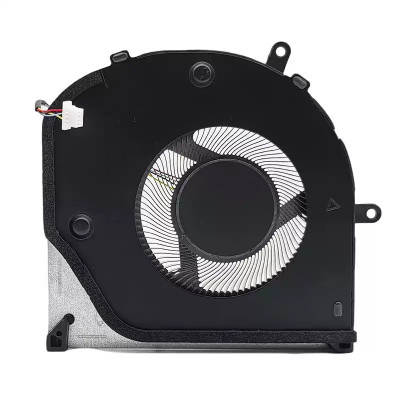
Connector integrity Signal accuracy PWM response test

Laptop Fan Interface Guide – 2‑Pin, 3‑Pin, 4‑Pin PWM

Learn the differences, use cases, and how to identify your fan's connector type

1 Connector Types – What's the Difference?

2‑pin
Basic Power

Wires: 2 (Power + Ground)
Control: None – runs at fixed speed
Usage: Old laptops, simple cooling, no speed monitoring.

3‑pin
Speed Monitoring

Wires: 3 (Power, Ground, Tachometer)
Control: Voltage‑based (DC) speed control
Usage: Most mid‑range laptops; motherboard reads RPM but cannot adjust dynamically without voltage change.

4‑pin PWM
Smart Control

Wires: 4 (Power, Ground, Tachometer, PWM)
Control: Pulse‑width modulation (dynamic speed)
Usage: Modern laptops, gaming/workstations, quiet and efficient cooling.


2 Choosing the Right Interface – Use Case & Compatibility

Interface Best For Pros Cons
2‑pin Legacy/older laptops, basic cooling Simple, low cost No speed monitoring, always full speed (noisy)
3‑pin Business laptops, mid‑range RPM feedback, voltage control possible Less precise control, requires voltage regulation
4‑pin PWM Gaming/workstations, modern laptops Precise, silent, dynamic speed adjustment Slightly higher cost, requires PWM‑capable motherboard

Note: A 4‑pin fan can be plugged into a 3‑pin header (the PWM pin is unused) – it will run at full speed. A 3‑pin fan plugged into a 4‑pin header will also run at full speed (no PWM control). For dynamic control, both fan and header must be 4‑pin.


3 How to Identify Your Fan's Interface

Count the Wires

Simply count the number of wires leading to the fan connector – 2, 3, or 4. This is the most direct method.

Check the Connector

Look at the header on your motherboard – the number of pins matches the fan's connector. A 4‑pin header has a distinct extra pin.

Consult Documentation

The laptop service manual or motherboard datasheet often specifies the fan header type. Search online using your model number.


4 How to Choose the Right Fan Based on Interface

Match the Pin Count

Select a fan with the same number of pins as your motherboard header. A 4‑pin fan on a 3‑pin header works (full speed only), but a 3‑pin fan on a 4‑pin header may not utilize PWM.

Consider Your Needs

If you value quiet, adaptive cooling, choose 4‑pin PWM. If your laptop is older or you don't mind constant speed, 3‑pin or 2‑pin may suffice.

Check Compatibility

Ensure the connector's physical shape and pitch (spacing between pins) match your motherboard. Some vendors use proprietary connectors.

Seek Expert Advice

If you're uncertain about your interface, send a photo of the connector to our support team. We'll verify and recommend the correct fan.

Not sure which interface you have? Take a clear photo of your fan connector (showing the wires and the header) — we'll identify the type for you and confirm compatibility. Contact us →